Extend a photo

Extend photo online

Need more photo? Pull the edges out.

Drag any side of your picture outward and the new space fills in to match — sky, wall, floor or sea.

Free · No sign-up · Photos stay on your device

or drop a photo anywhere here, or paste one

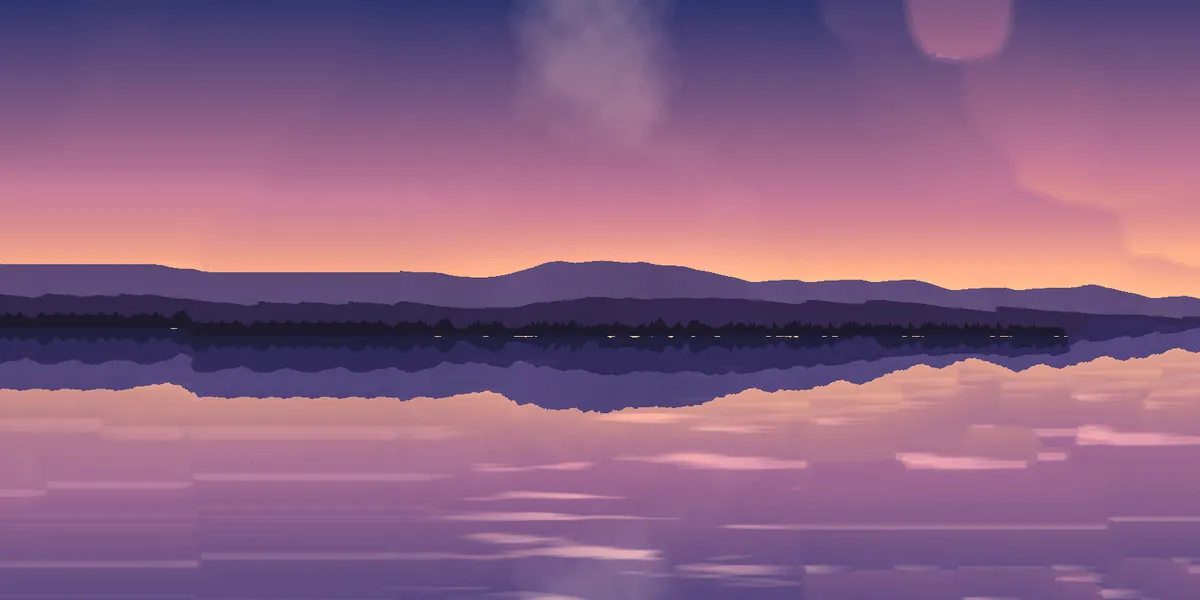
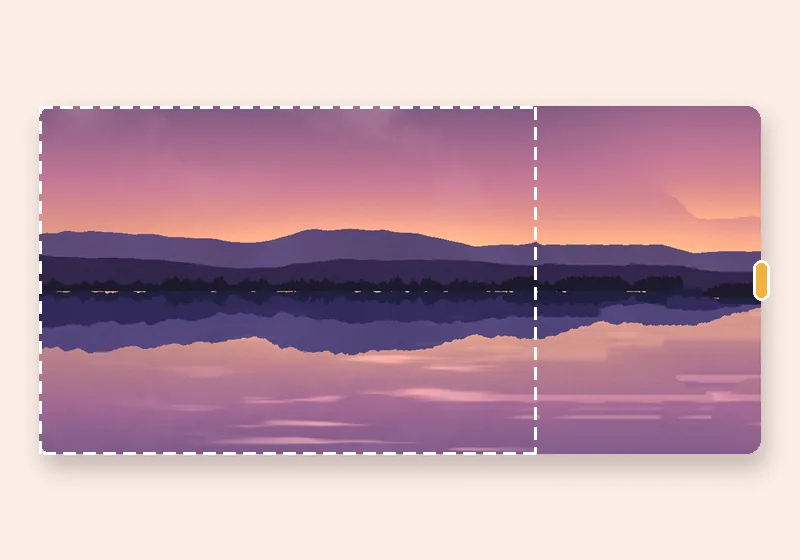
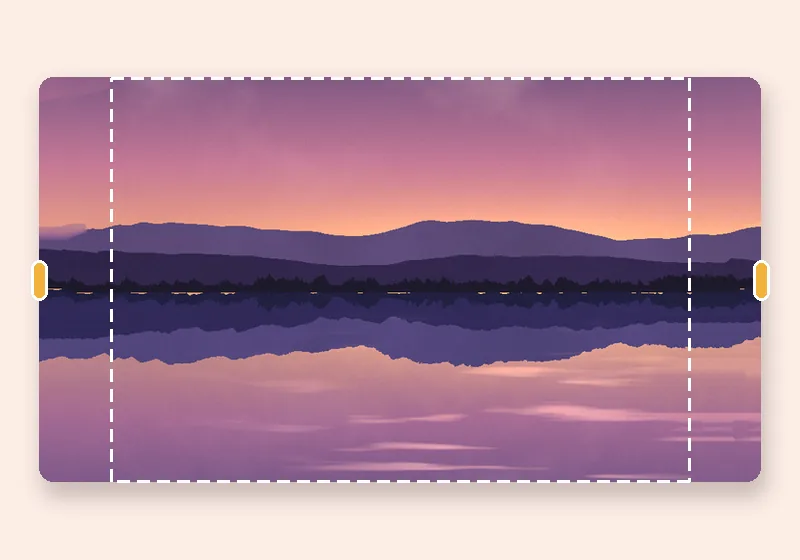
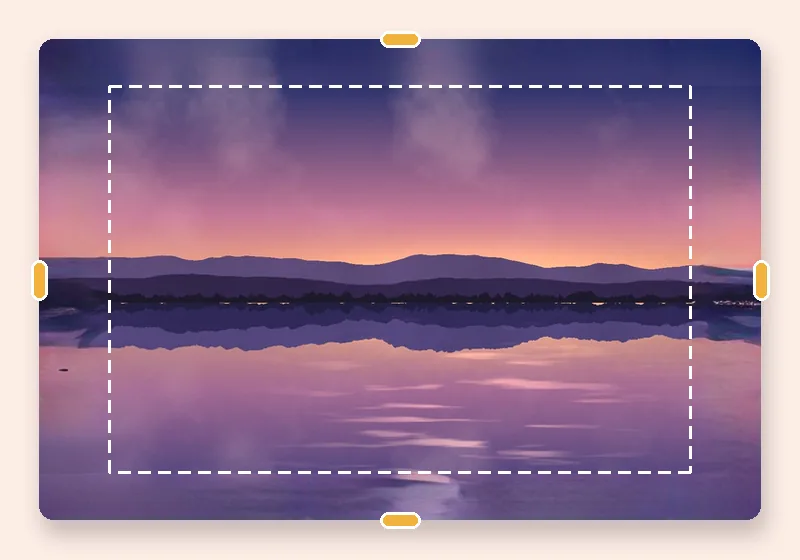
The sample lake photo extended to a wide panorama with smart fill
Original inside the dashed frame · everything outside it was added here

Made with ExtendPhoto

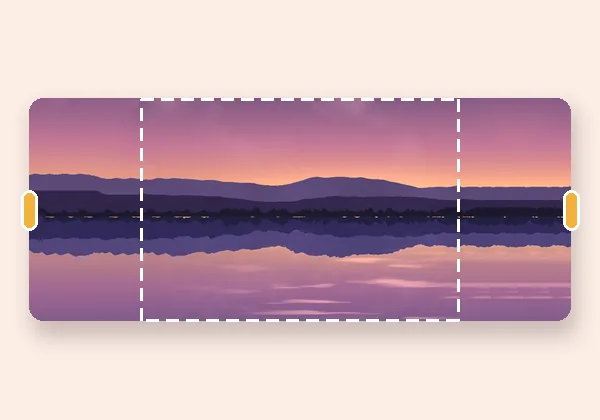
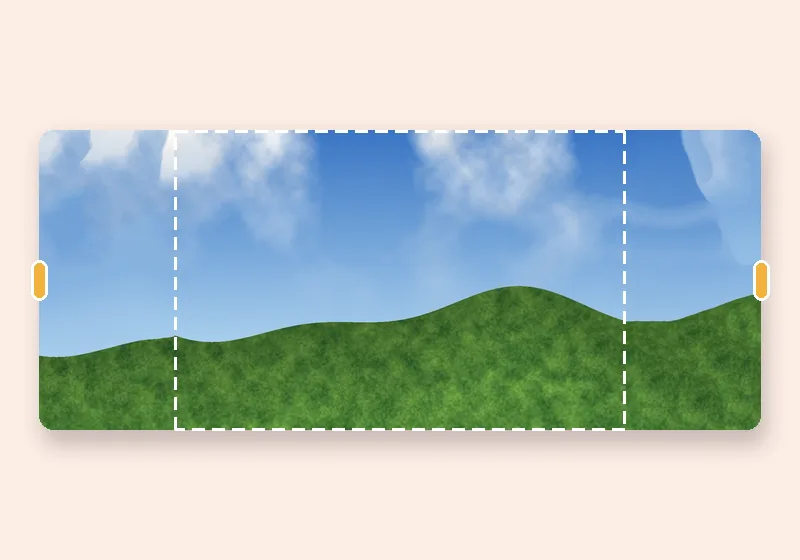
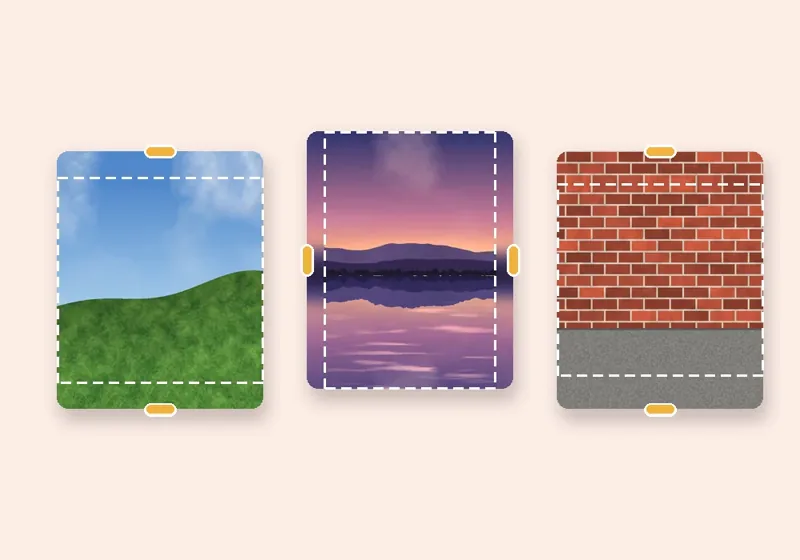
  • Smart fill example: A lake at dusk pulled wider on both sides from its own hills and water.

    Smart fill

    A lake at dusk pulled wider on both sides from its own hills and water.

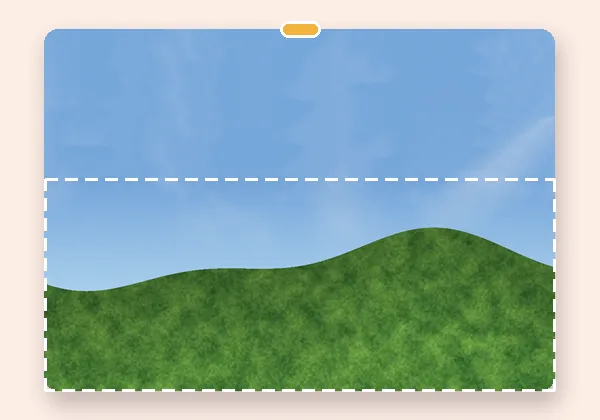
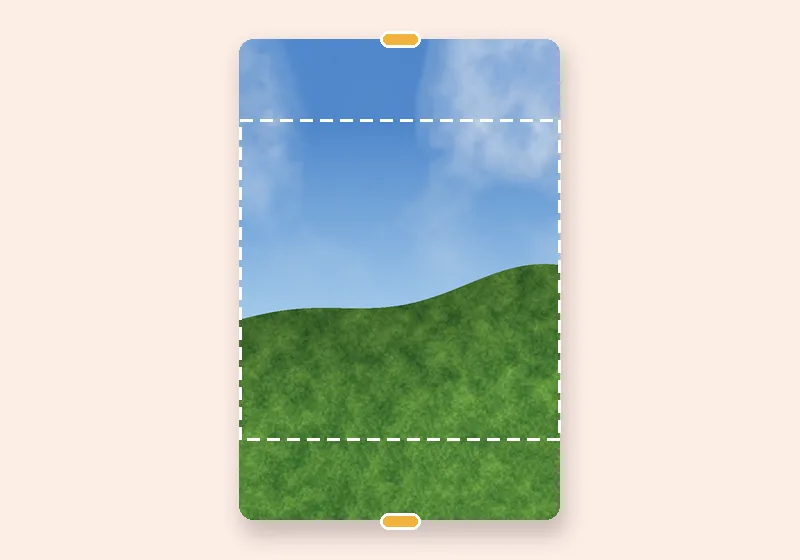
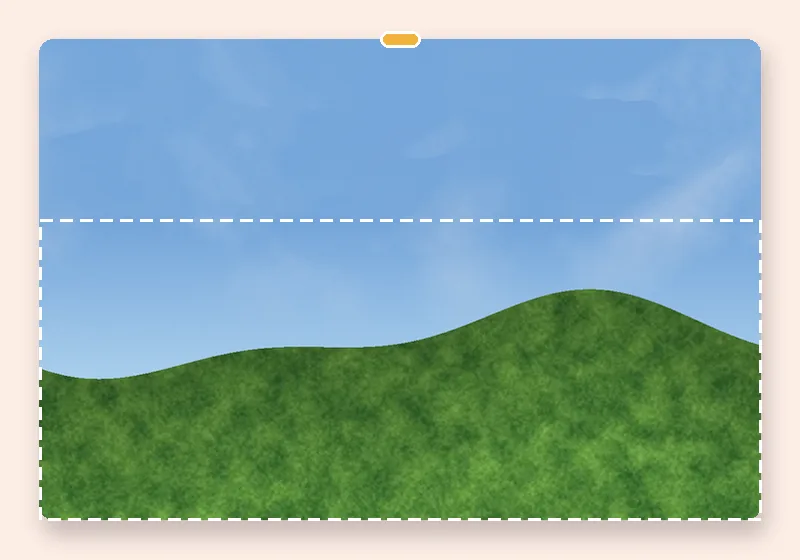
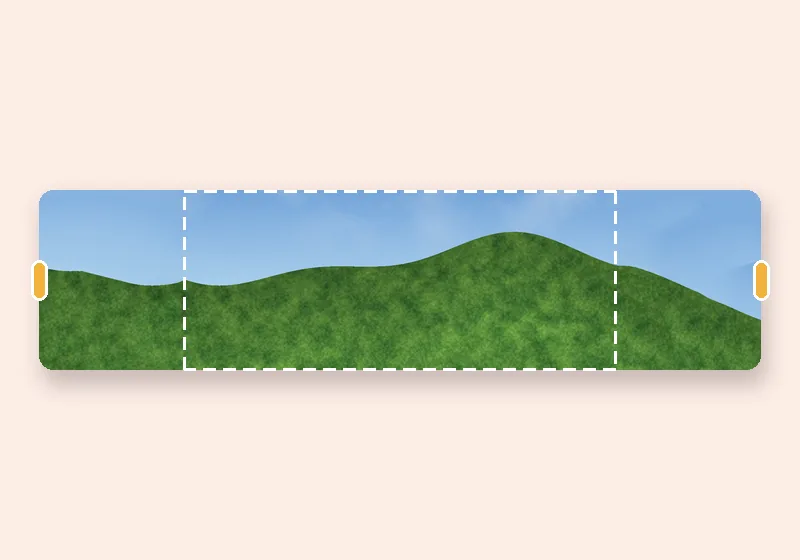
  • More sky example: Headroom added above a hillside, colour matched at the join.

    More sky

    Headroom added above a hillside, colour matched at the join.

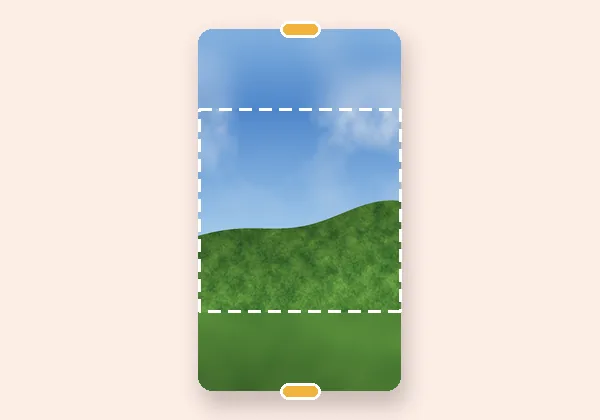
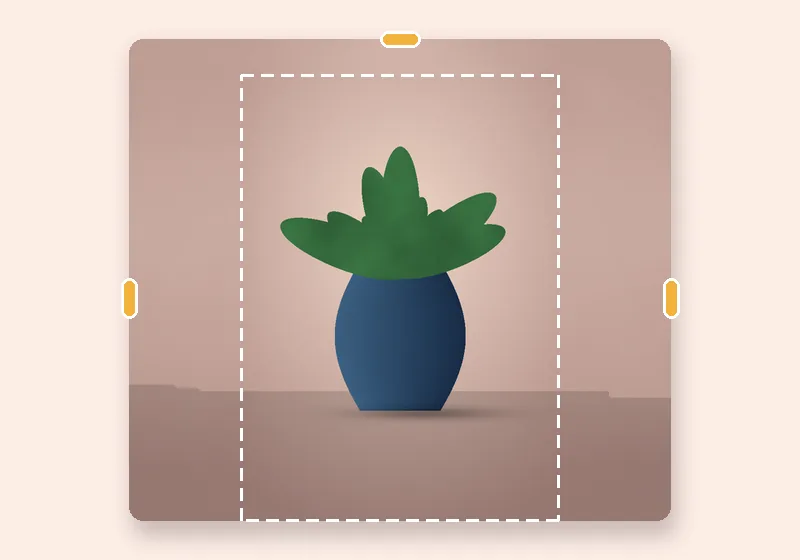
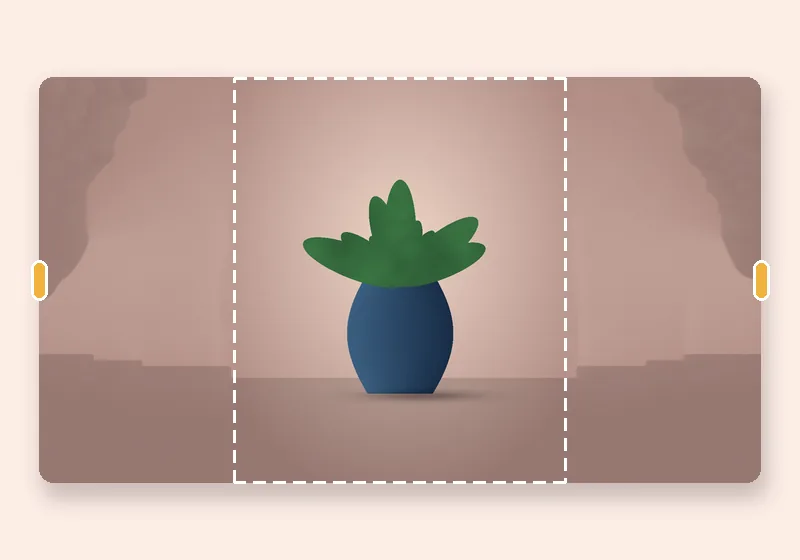
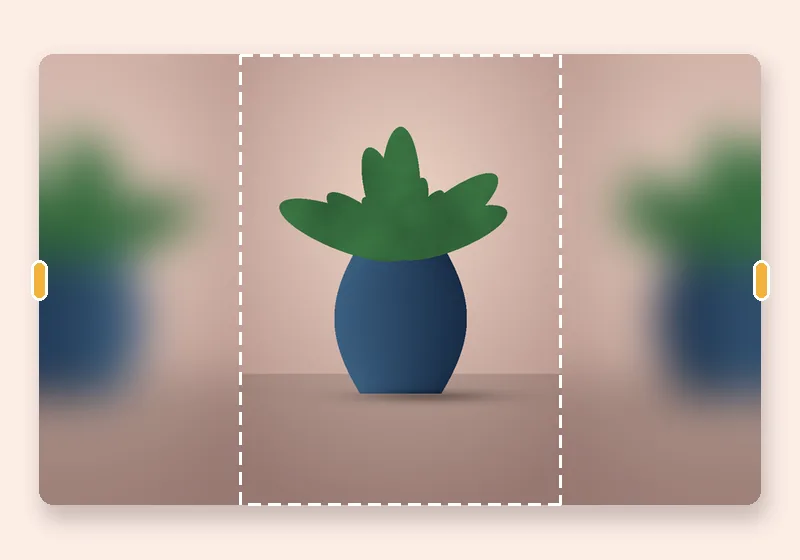
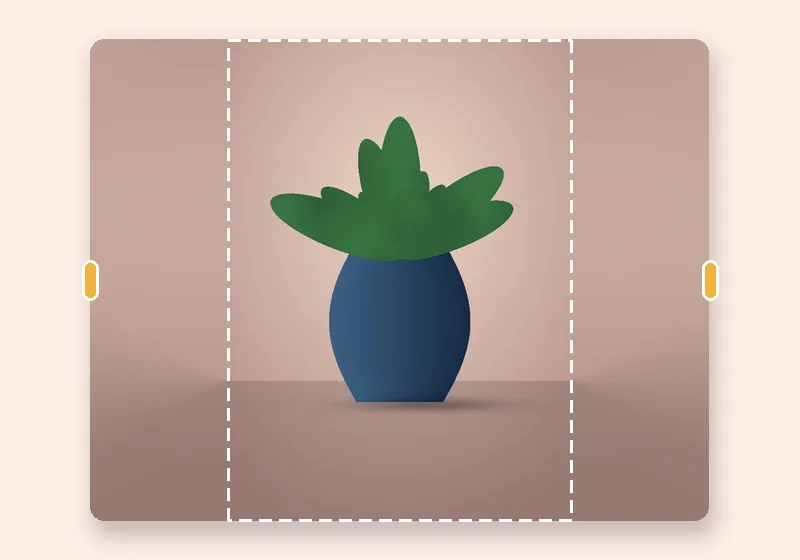
  • Soft blur example: A square photo turned into a 9:16 story with a soft backdrop.

    Soft blur

    A square photo turned into a 9:16 story with a soft backdrop.

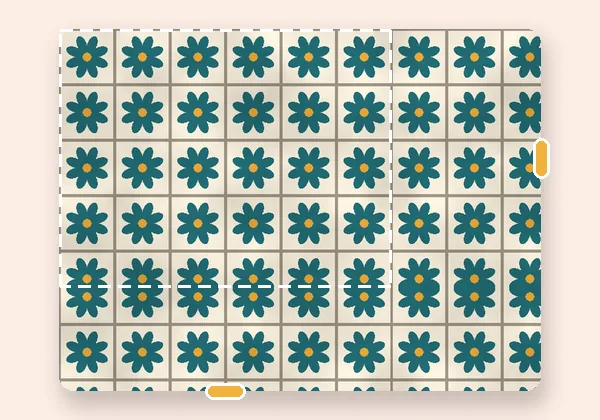
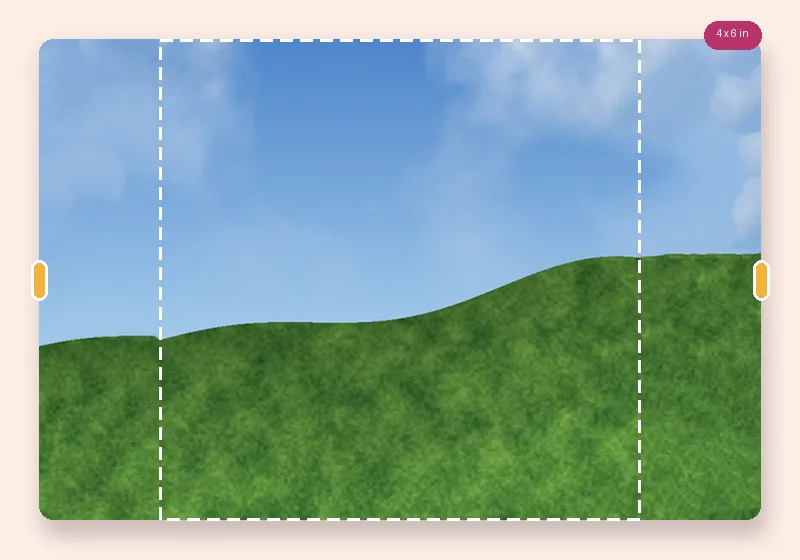
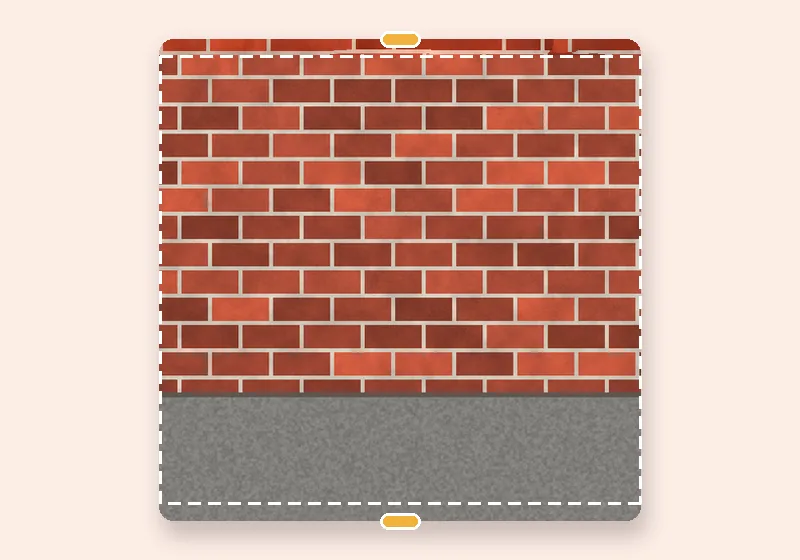
  • Mirror example: A tiled pattern carried on without a visible join.

    Mirror

    A tiled pattern carried on without a visible join.

How it works

  1. Open a photo

    Choose, drop or paste a JPG, PNG or WebP. It opens in this tab.

  2. Pull the edges

    Drag any side outward, or pick an exact size. The new space fills in.

  3. Download

    Save as JPG, PNG or WebP at full resolution.

Extend a photo exactly where you need more

Most photos are the right picture in the wrong shape: the subject is too close to the edge, the banner needs to be wider, the print needs a border you can't crop into. ExtendPhoto adds picture to the side that's short — and only that side.

Open a photo and pull its edges. Each side has its own handle and its own number, in pixels, percent, centimetres or inches. Prefer a finished size? Switch to Exact size and pick a print, banner, cover or wallpaper size; the photo is fitted in and the gaps are filled.

Eight ways to fill the new edges

Every fill previews live, and each side can use a different one.

  • Smart fill — rebuilds texture from the photo itself. Best for skies, walls, grass, sand and backdrops.
  • AI fill — an inpainting model you download once (26.6 MB) continues the scene.
  • Stretch — pulls the edge pixels outward and softens them with distance.
  • Mirror — reflects the photo at its edges, perfect for patterns.
  • Soft blur — an out-of-focus continuation, the classic look for reposts.
  • Colour and Fade — one sampled or picked colour, or edge colours fading into it.
  • Transparent — see-through edges for designs, saved as PNG or WebP.

Questions

How do I extend a photo without cropping it?

Open the photo, then drag the edge you want to grow — or type how much to add on each side. The original pixels stay exactly as they were; the new area around them is filled with the method you choose, and you download the bigger picture.

How does Smart fill know what to put in the new space?

It copies small patches of your own photo. For every bit of new edge it searches the photo for the patch that fits best with what is already there, then blends those patches together, working from a rough version of the picture down to full detail. Skies, walls, grass, sand, water and studio backdrops come out convincingly; faces, text and unique objects are not invented.

Can I extend just one side?

Yes. Every edge is independent. Use the +10% buttons to grow one side in steps, or set the linked-edges option to Opposite edges or All edges when you want the photo to stay centred.

What size can the result be?

Up to 48 megapixels — for example 8000 × 6000 pixels. That limit keeps the browser tab from running out of memory, especially on phones.

Is my photo uploaded anywhere?

No. The photo is opened, extended and saved by this browser tab. The only optional downloads are the AI models, which are plain files coming to you — nothing about your photo goes out.