Extend a photo

Extend photo size

Exactly the size you were asked for.

Type the width and height you need; the photo is fitted in and the canvas is filled around it.

Free · No sign-up · Photos stay on your device

or drop a photo anywhere here, or paste one

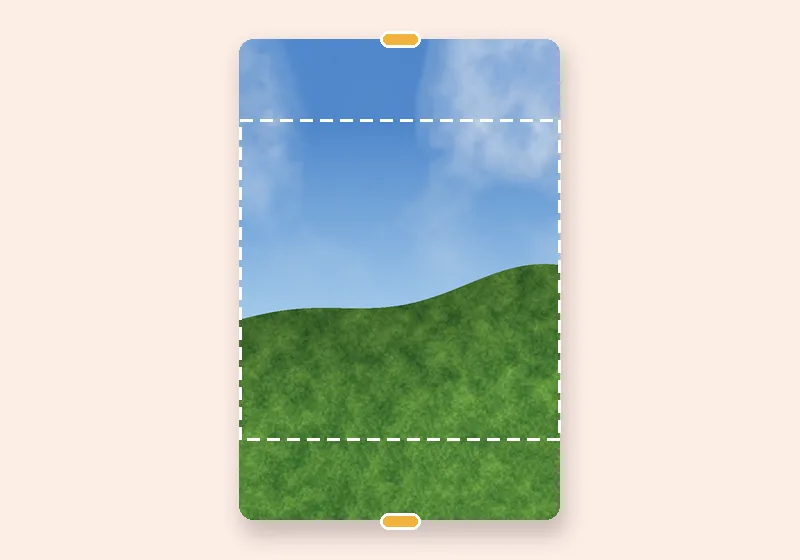
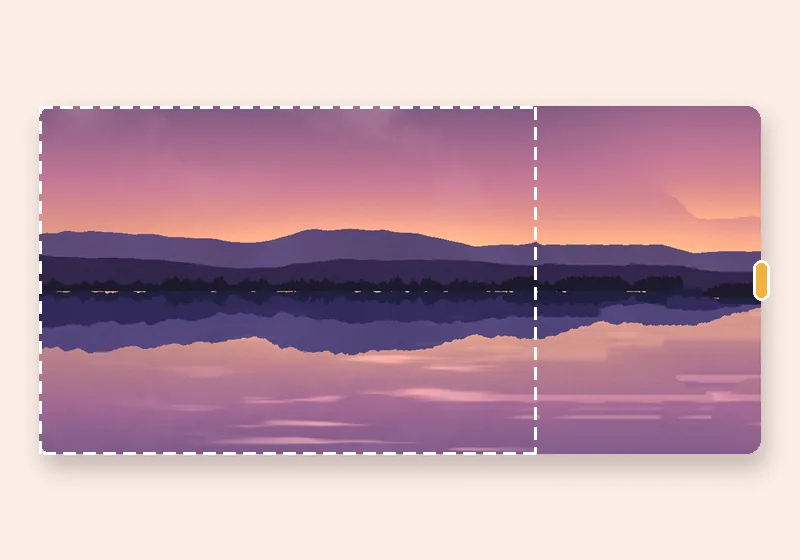
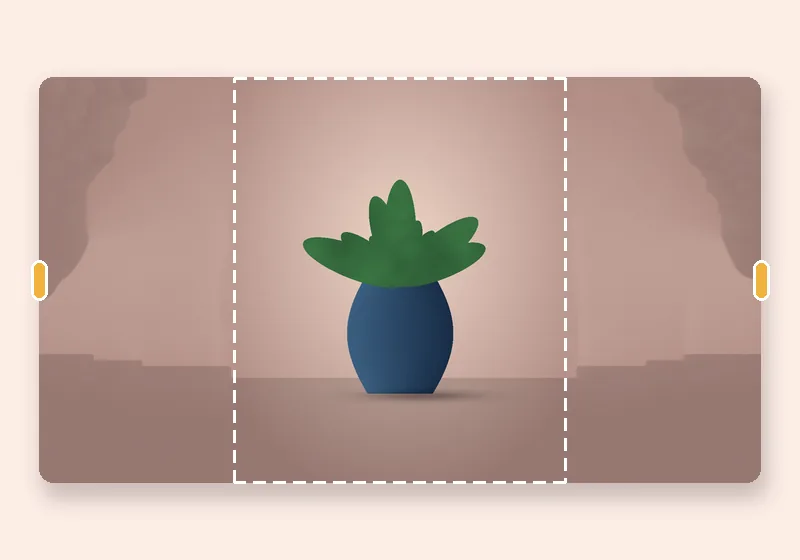
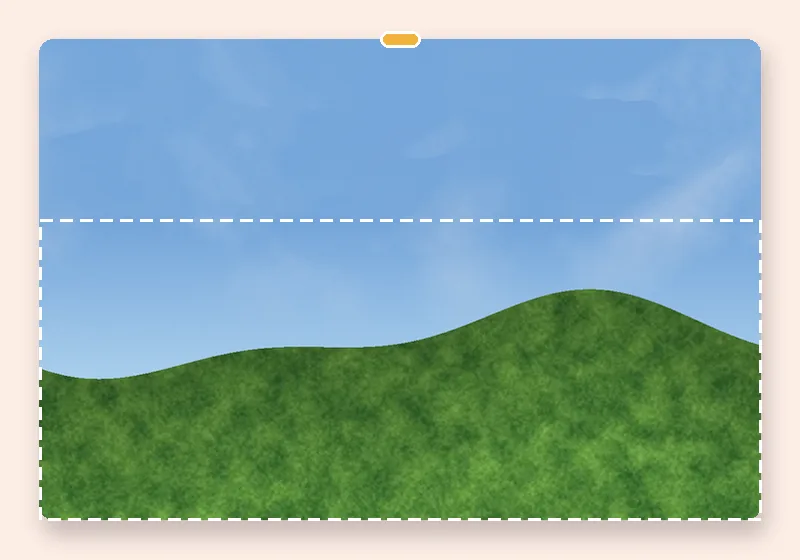
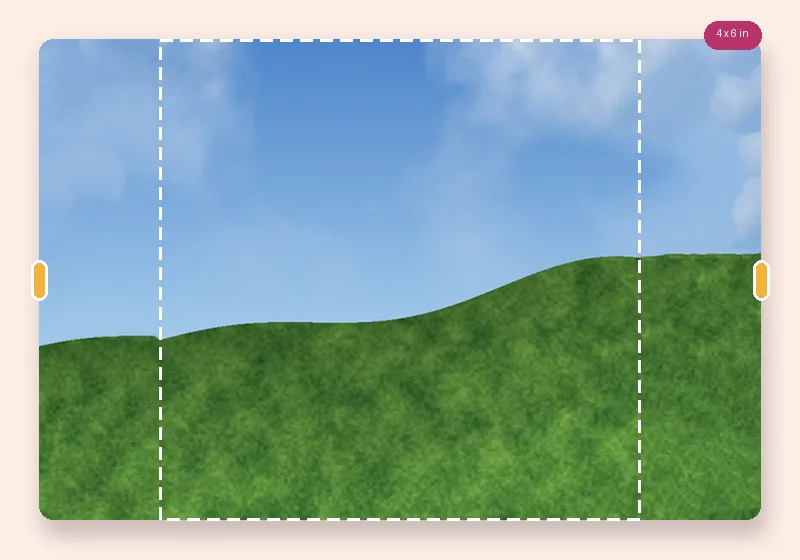
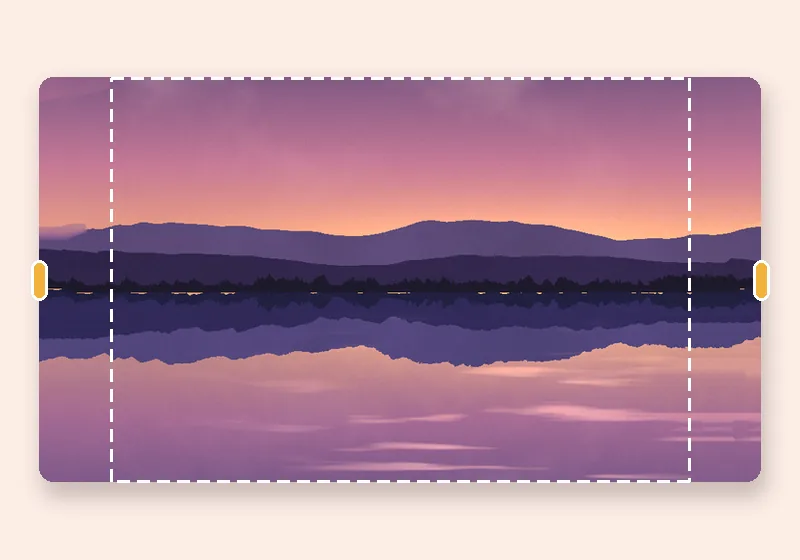
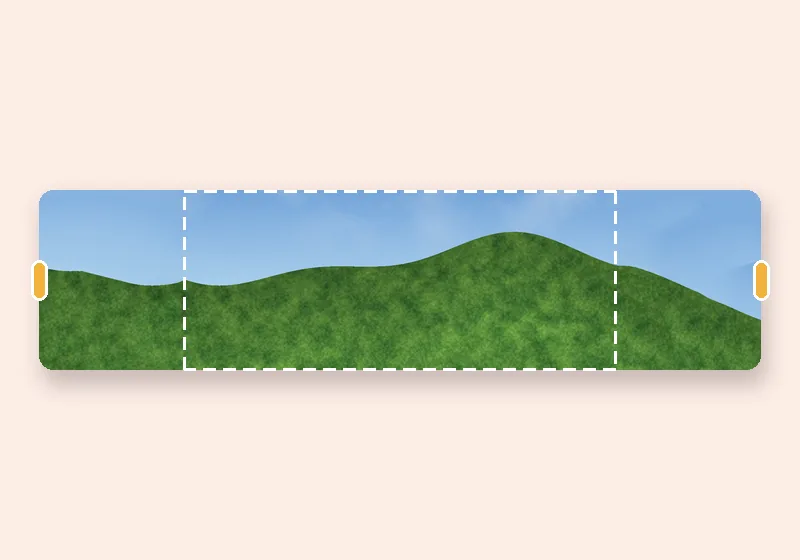
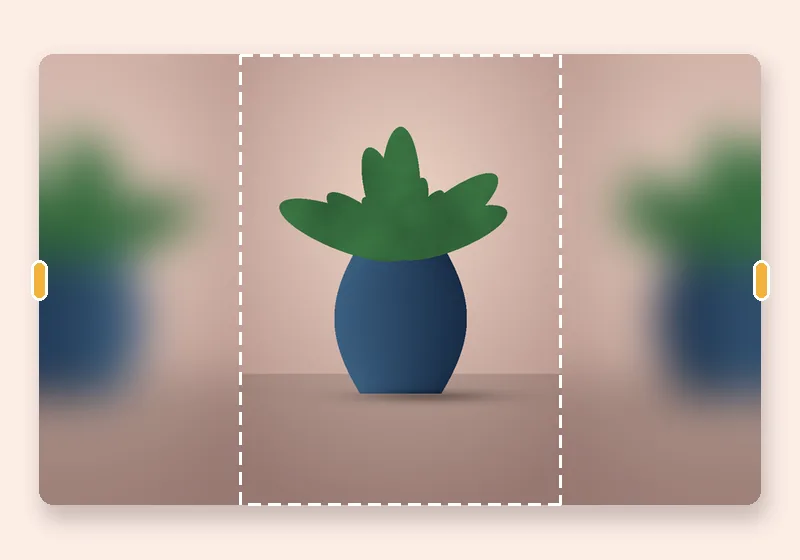
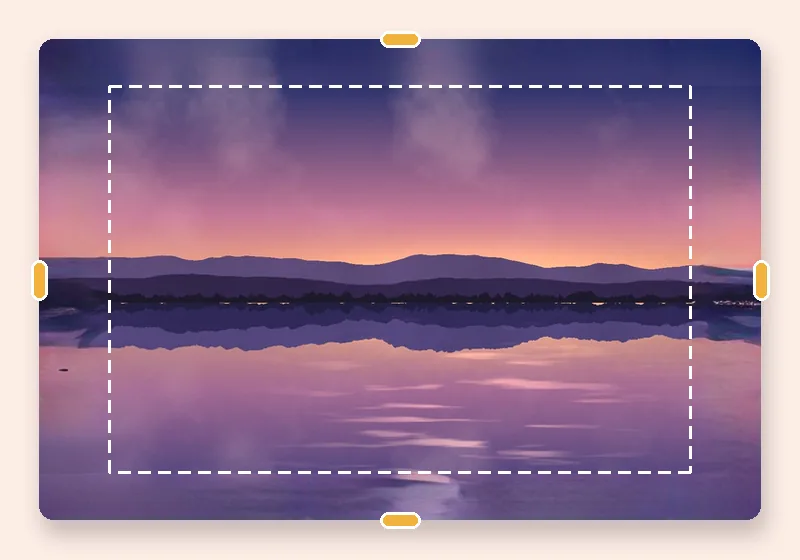
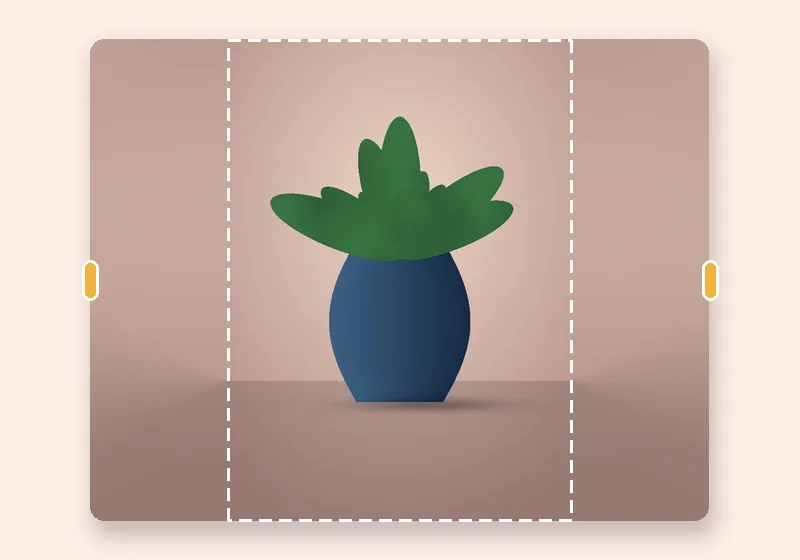
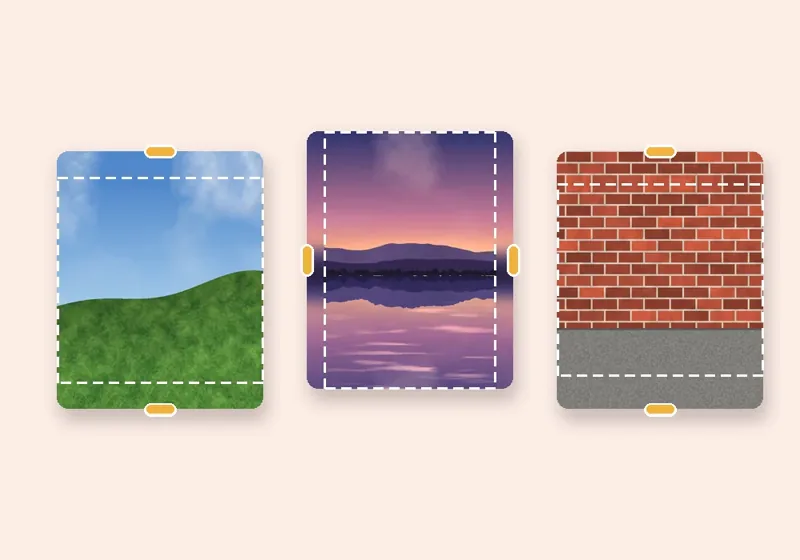
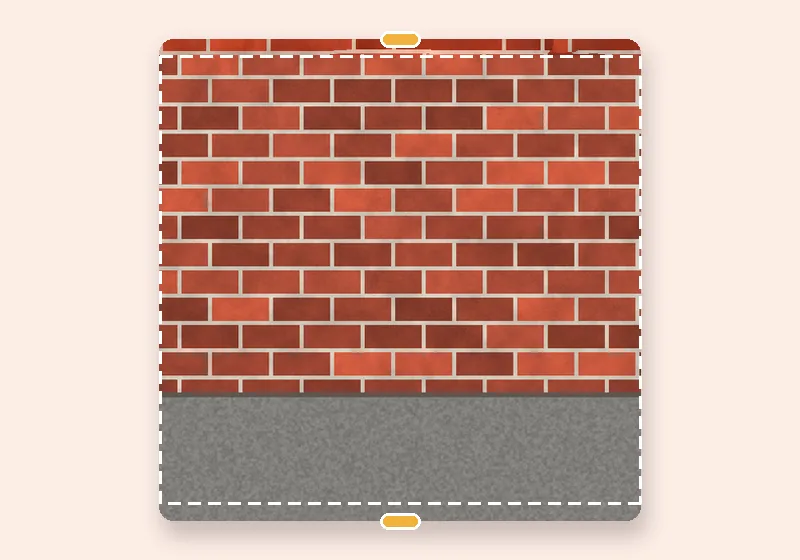
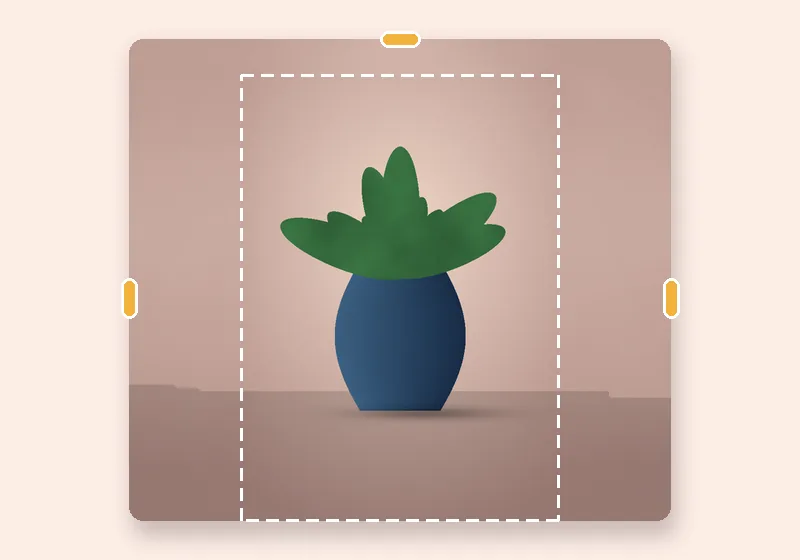
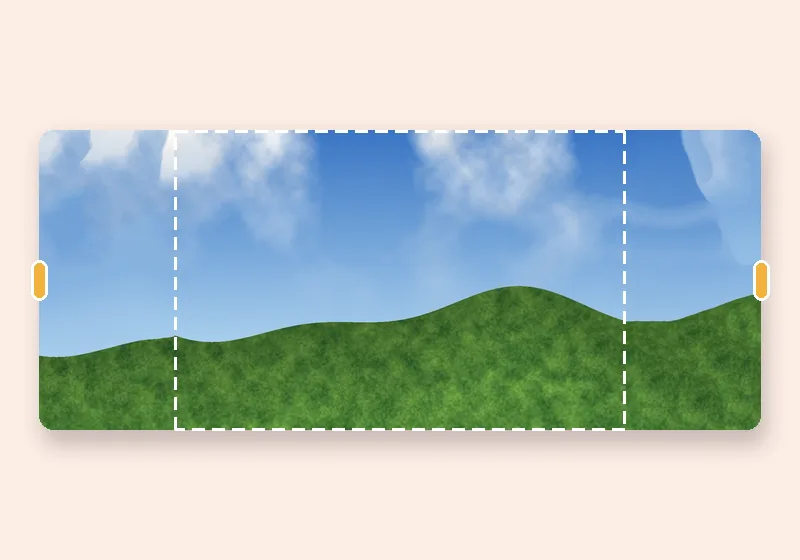
Extend to exact size: example made with this tool — the dashed frame is the original photo
Dashed line = the original photo

How it works

  1. Open a photo

    Choose, drop or paste a JPG, PNG or WebP. It opens in this tab.

  2. Pull the edges

    Drag any side outward, or pick an exact size. The new space fills in.

  3. Download

    Save as JPG, PNG or WebP at full resolution.

Bigger canvas, same photo

Forms, marketplaces, templates and slides often ask for an exact pixel size. Resizing distorts; cropping loses part of the picture. Extending the canvas to the exact size keeps the photo whole.

Type a width and height (16 to 12,000 pixels each). Choose how big the photo sits in the frame and where — centred, on a third, or against an edge — or just drag it.

Canvas size, the Photoshop way

If you know Canvas Size in desktop editors, this is that, with the new area filled instead of left blank. Choose Transparent for a blank PNG canvas, or Colour for a solid one.
Questions

How do I increase the canvas size without stretching the photo?

Choose Custom and type the new width and height. The photo keeps its proportions; only the area around it is new.

Does this change the file size in KB?

A bigger canvas usually makes a bigger file. This tool sets pixel size, not a KB target; pick JPG quality Smaller if you need a lighter file.

Can I keep the photo at its original pixel size?

Yes — turn off Enlarge small photos and set Photo size in the frame to 100%. The photo stays 1:1 and only the canvas grows.

Is my photo uploaded anywhere?

No. The photo is opened, extended and saved by this browser tab. The only optional downloads are the AI models, which are plain files coming to you — nothing about your photo goes out.