Extend a photo

Make photo wider

Wider photo. Nothing squashed.

Add width on the left, the right or both, and fill it to match the scene.

Free · No sign-up · Photos stay on your device

or drop a photo anywhere here, or paste one

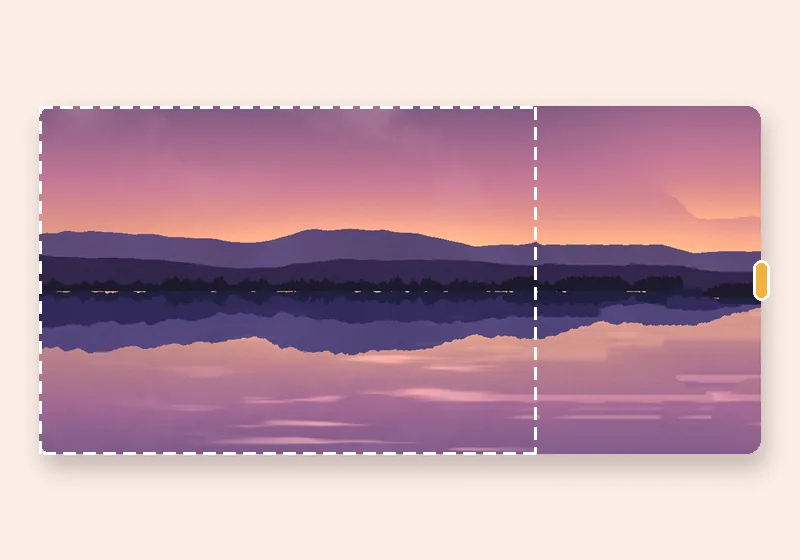
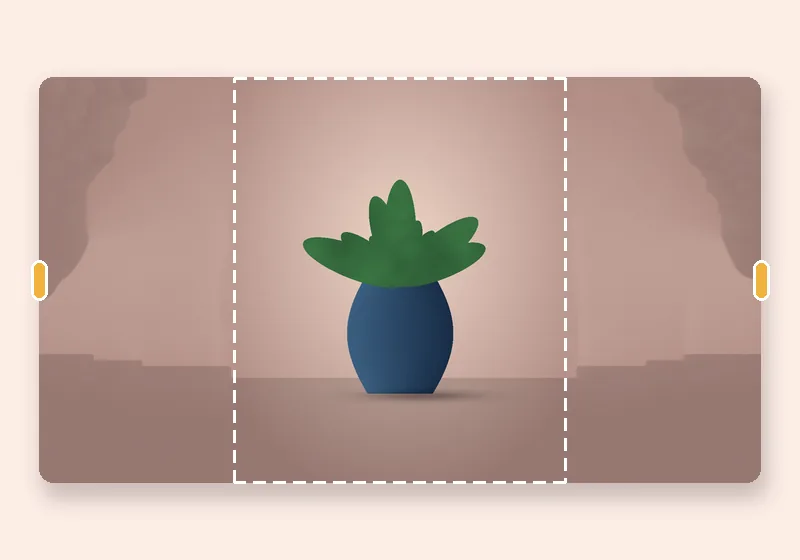
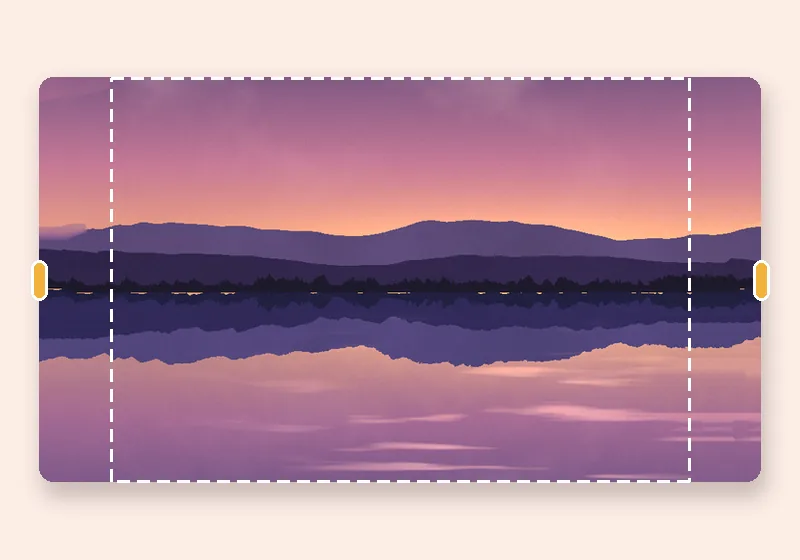
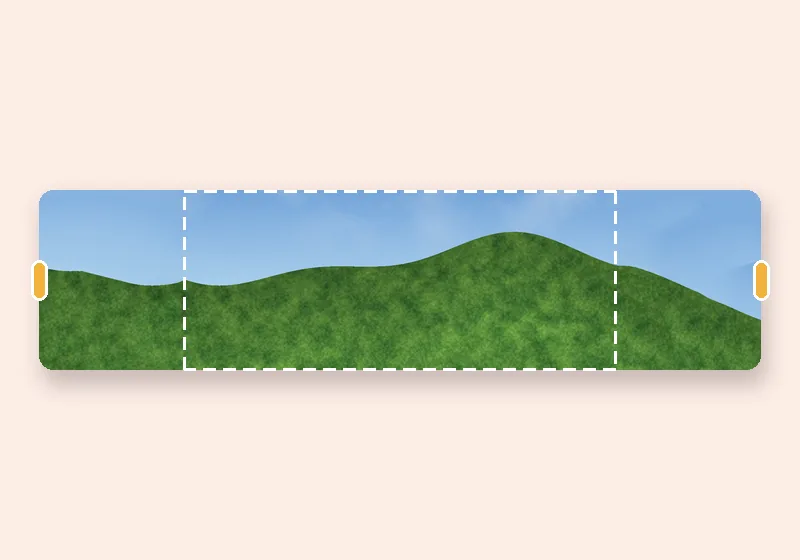
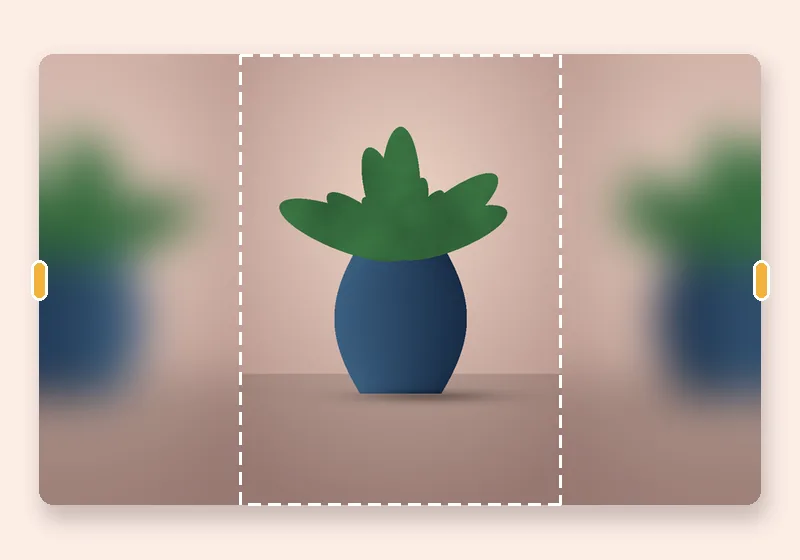
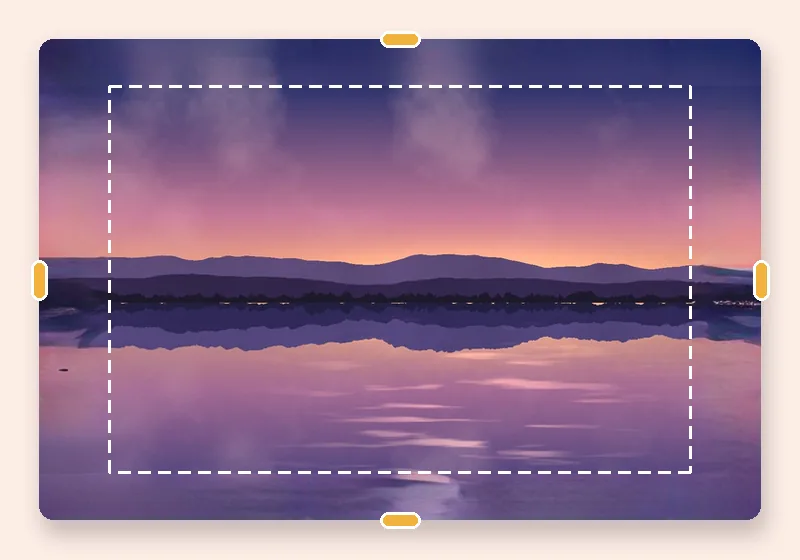
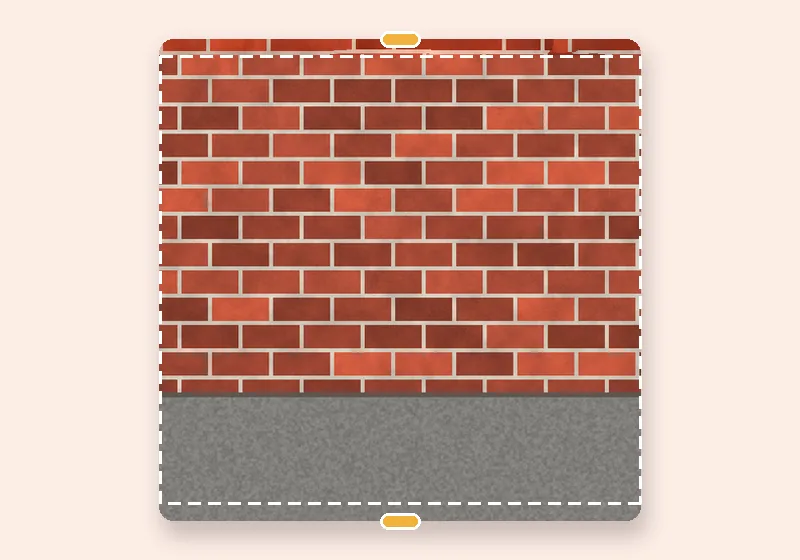
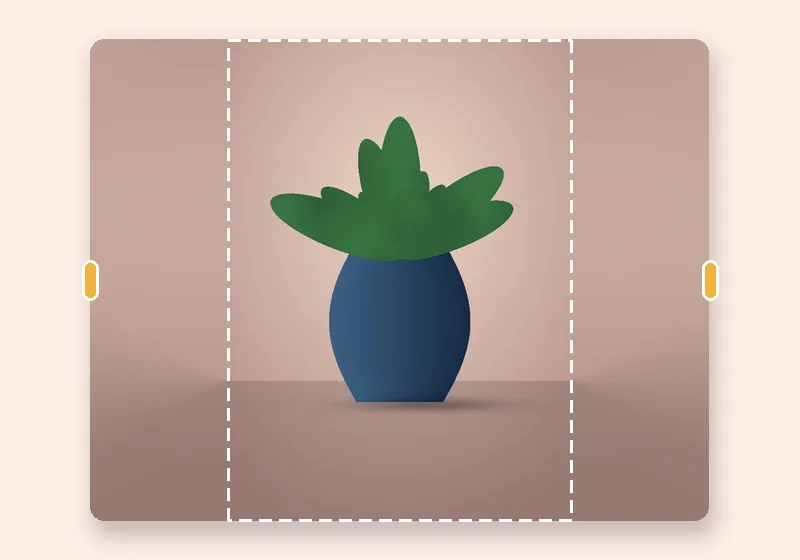
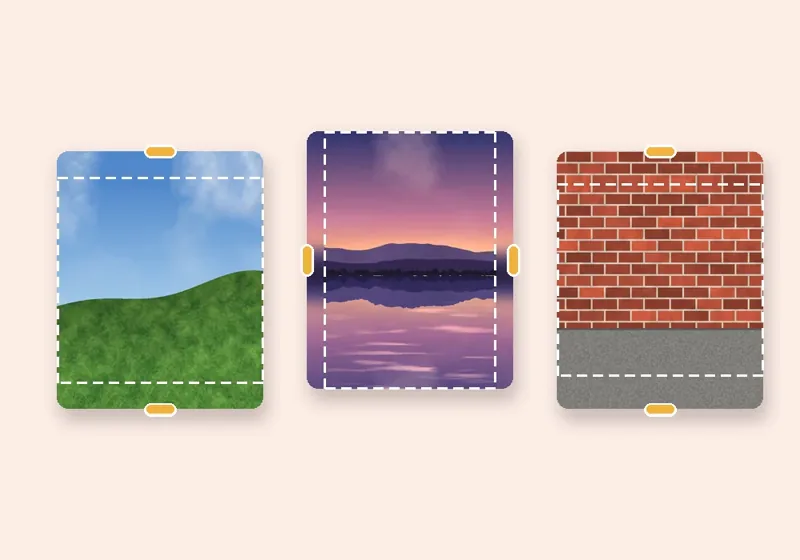
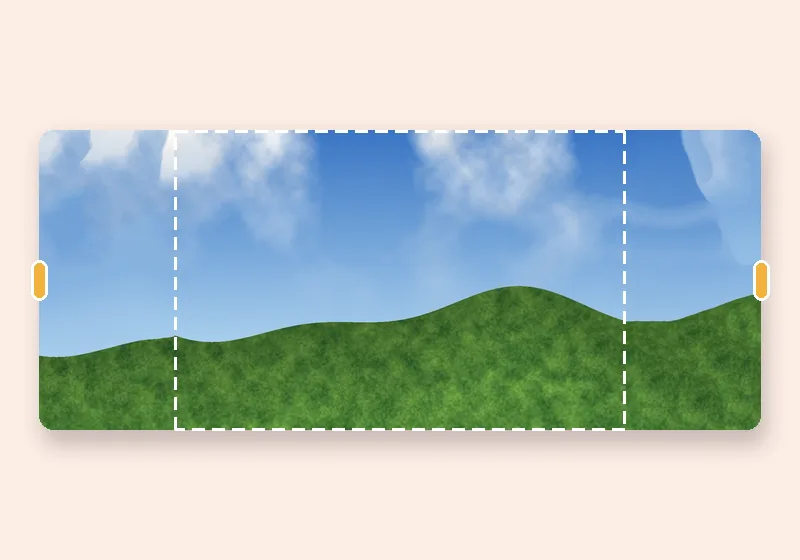
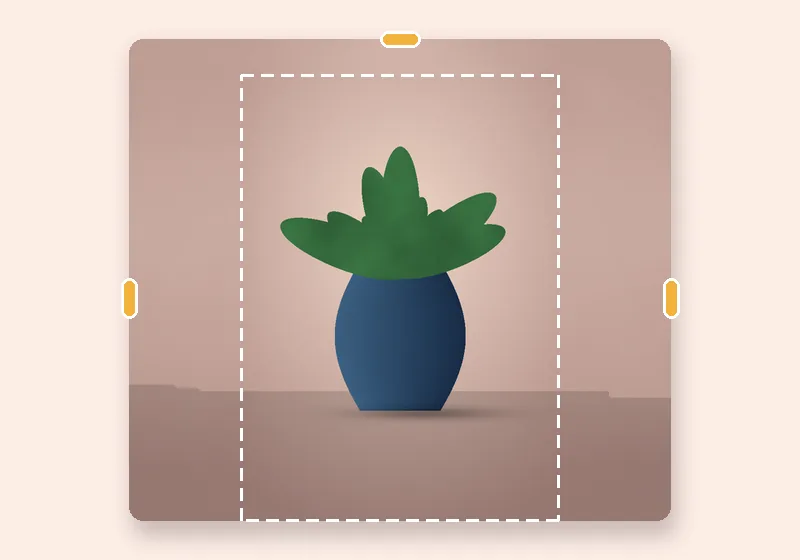
Make photo wider: example made with this tool — the dashed frame is the original photo
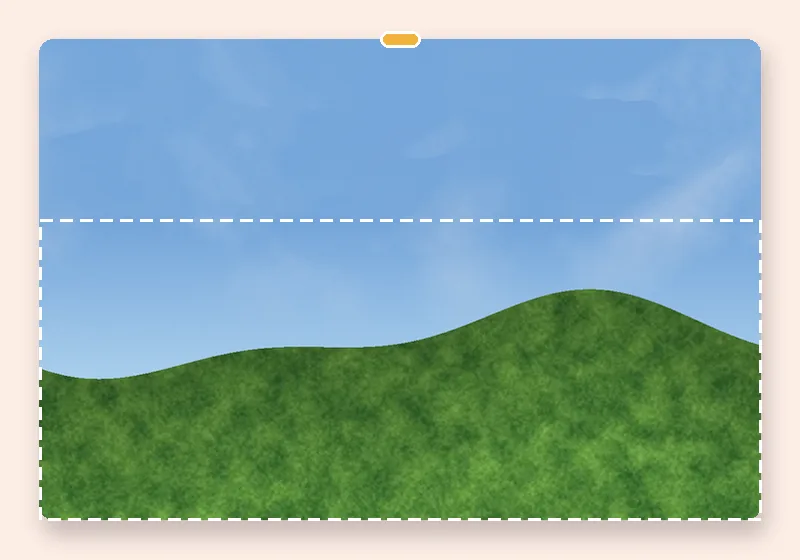
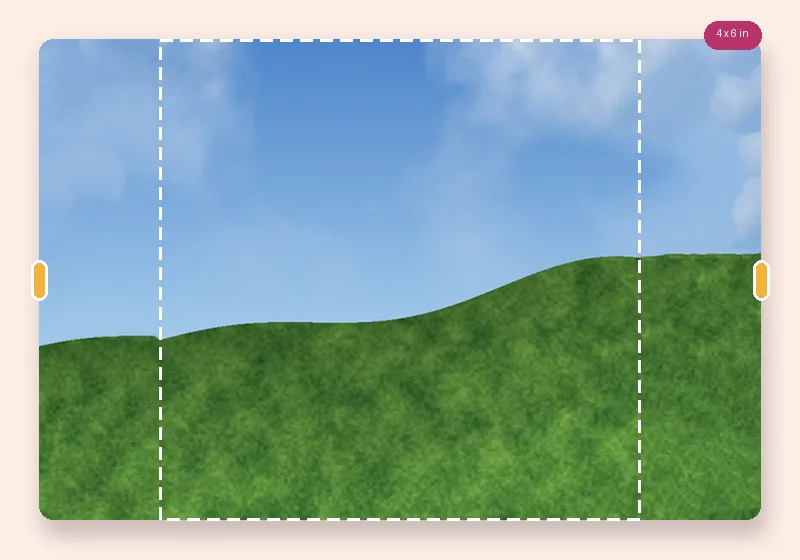
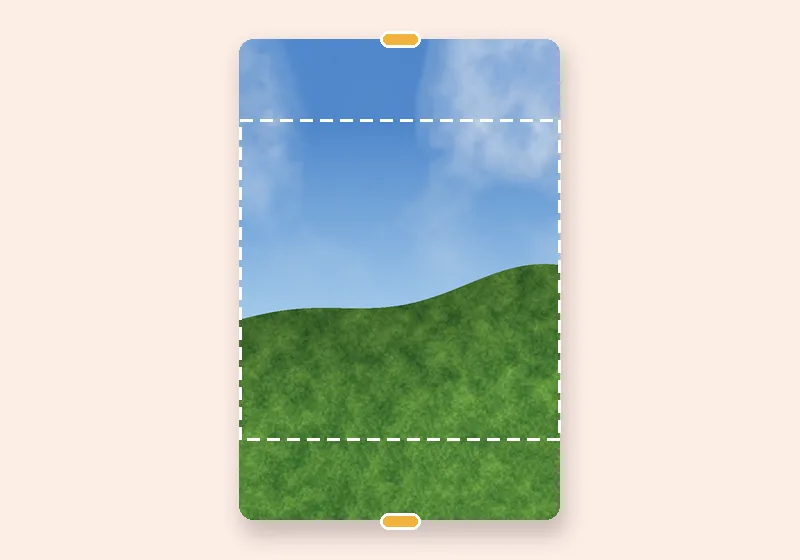
Dashed line = the original photo

How it works

  1. Open a photo

    Choose, drop or paste a JPG, PNG or WebP. It opens in this tab.

  2. Pull the edges

    Drag any side outward, or pick an exact size. The new space fills in.

  3. Download

    Save as JPG, PNG or WebP at full resolution.

Widen an image the right way

Resizing a photo to a wider shape squashes everything in it — faces get fat, circles become ovals. Making it wider here adds new columns of picture instead, so everything that was in the photo keeps its proportions.

Drag the left or right handle, or type the extra width. Linked to Opposite edges by default, so the subject stays centred; switch to Each edge to widen one side only.

Which fill to choose

Smart fill for landscapes, rooms and backdrops. Soft blur when the subject should stand out and the sides don't matter. Mirror for symmetrical scenes and patterns. AI fill when the edge holds objects that need continuing.
Questions

How much wider can I make a picture?

Up to four times the photo's width on each side, within the 48-megapixel limit. Smart fill looks most natural when you add up to about half the width; beyond that, textures start to repeat.

Will it stretch the people in my photo?

No. The photo keeps its exact pixels; only new space is added beside it. If a person touches the edge, turn on Keep people out of the new edges.

How does Smart fill know what to put in the new space?

It copies small patches of your own photo. For every bit of new edge it searches the photo for the patch that fits best with what is already there, then blends those patches together, working from a rough version of the picture down to full detail. Skies, walls, grass, sand, water and studio backdrops come out convincingly; faces, text and unique objects are not invented.

Can I make it wider to an exact size?

Yes: switch to Exact size, choose a shape such as 16:9 or 21:9, or type a custom width and height. The photo keeps its height and gains width.