Extend a photo

Extend sky in a photo

More sky, in one pull.

Add clean headroom above a horizon, a building or a person — matched to the colour at the edge.

Free · No sign-up · Photos stay on your device

or drop a photo anywhere here, or paste one

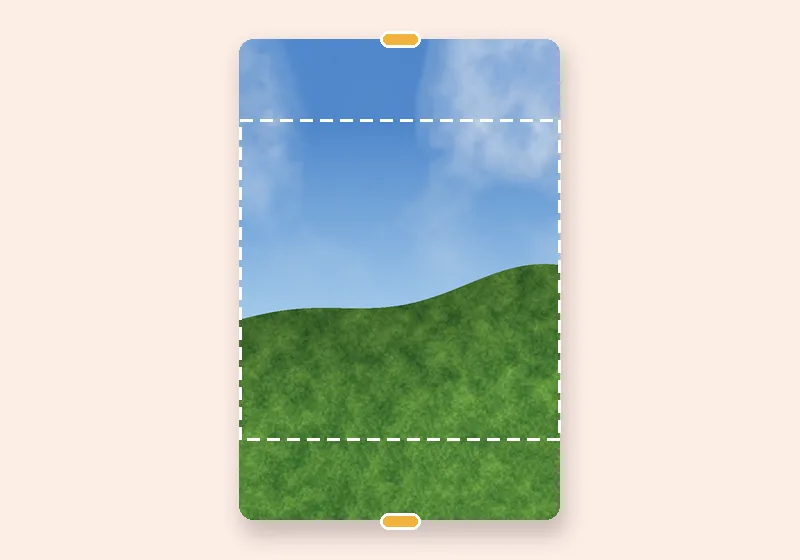
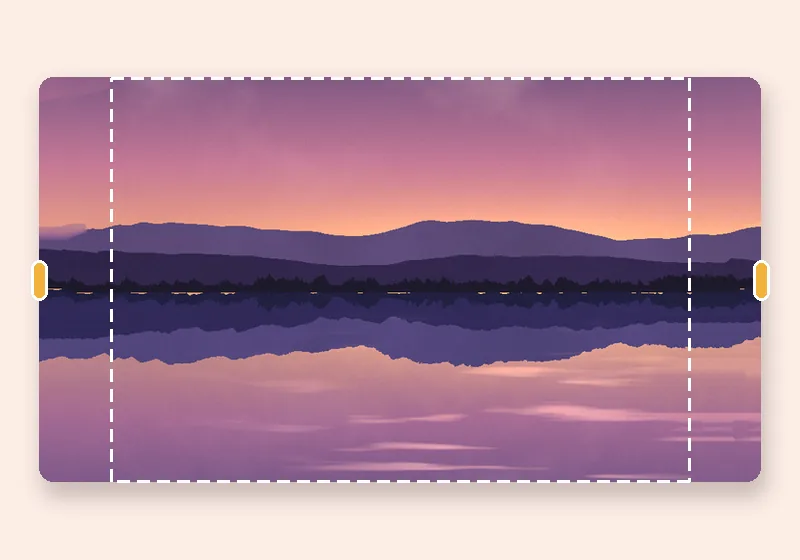
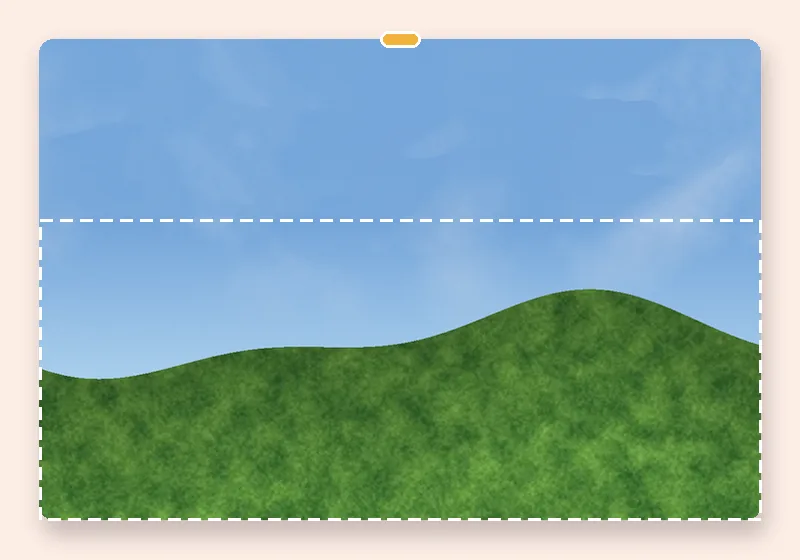
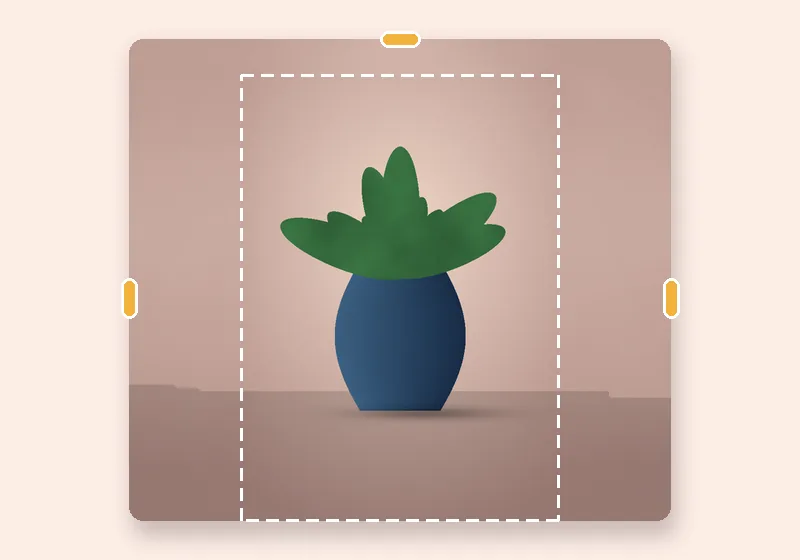
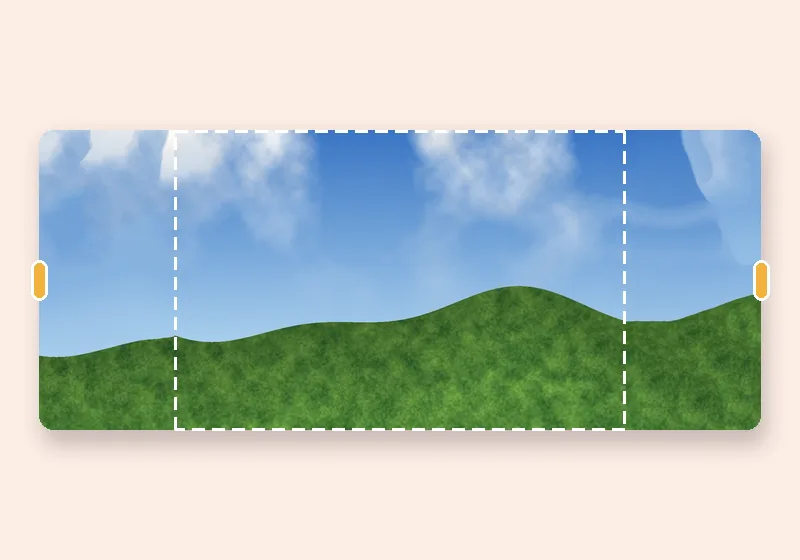
Extend sky: example made with this tool — the dashed frame is the original photo
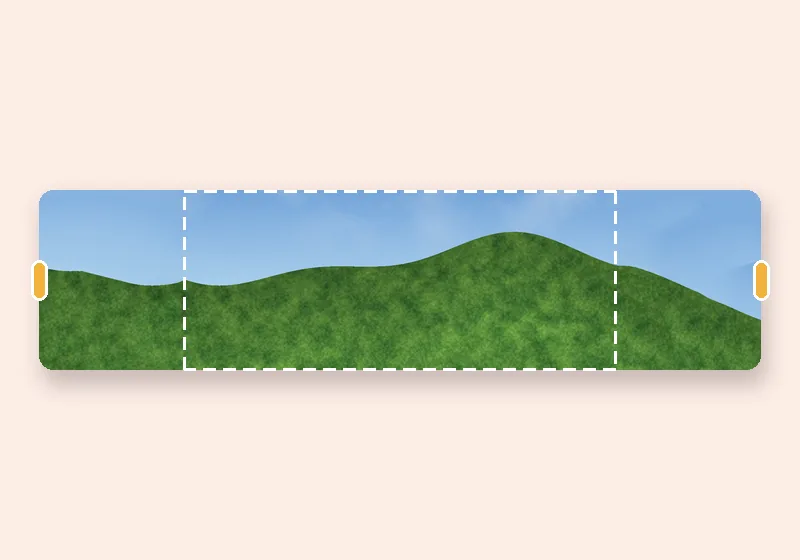
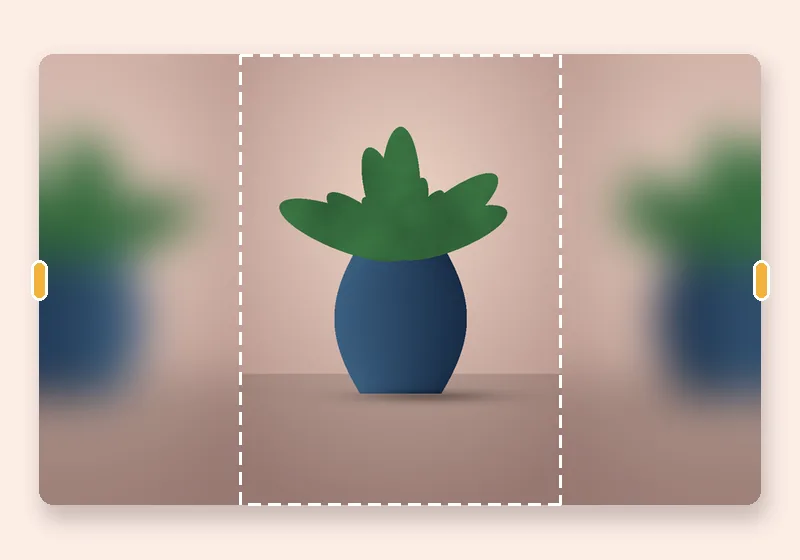
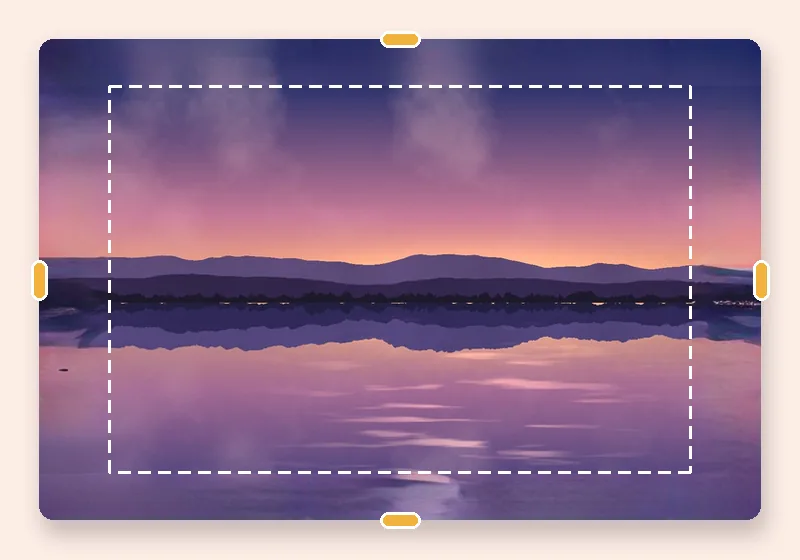
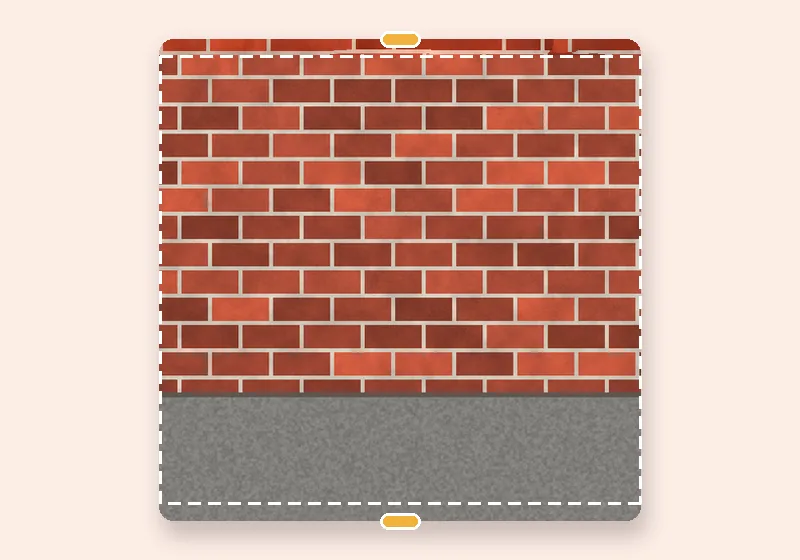
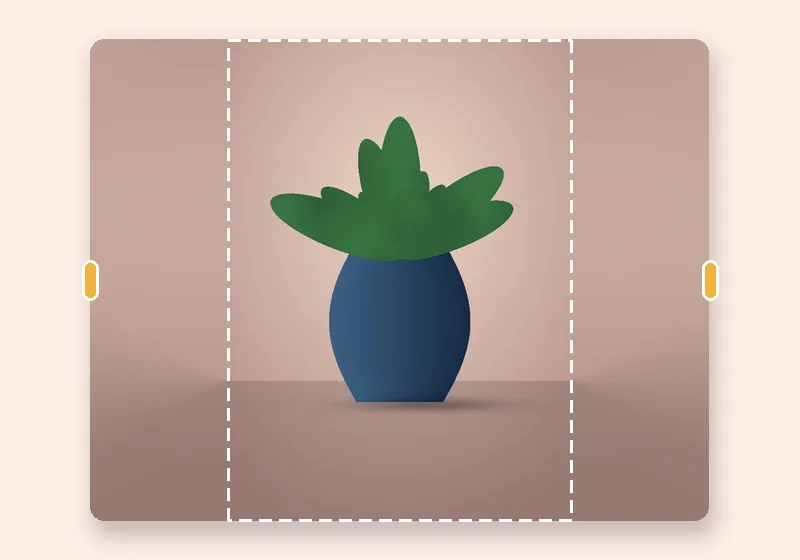
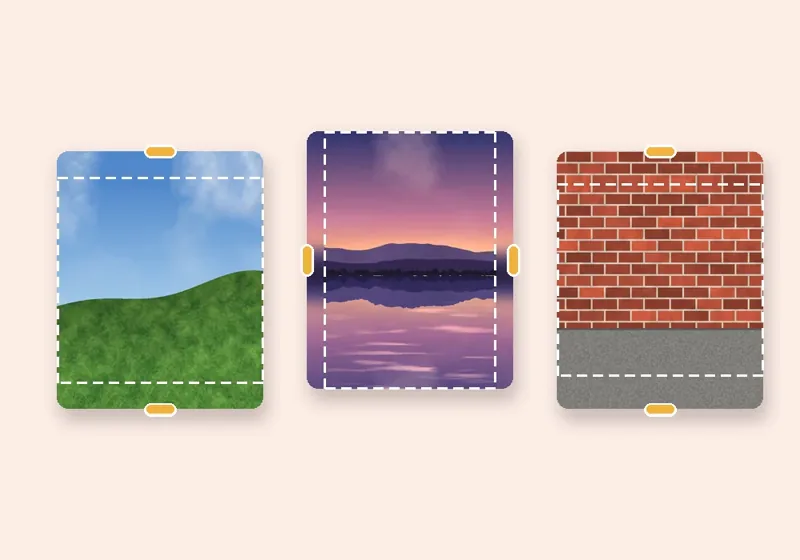
Dashed line = the original photo

How it works

  1. Open a photo

    Choose, drop or paste a JPG, PNG or WebP. It opens in this tab.

  2. Pull the edges

    Drag any side outward, or pick an exact size. The new space fills in.

  3. Download

    Save as JPG, PNG or WebP at full resolution.

Why sky is the easiest thing to extend — and the easiest to get wrong

Sky has no hard edges, so any texture-based fill can continue it. The usual failure is colour: skies get darker or lighter towards the top, and a fill that copies a lighter patch from lower down leaves a visible band where the new sky starts.

ExtendPhoto continues the sky from the colour at the edge, then measures any brightness step across the join and evens it out (Seam match, on by default). Clouds are copied from the photo's own clouds, so they keep their softness.

Also good for

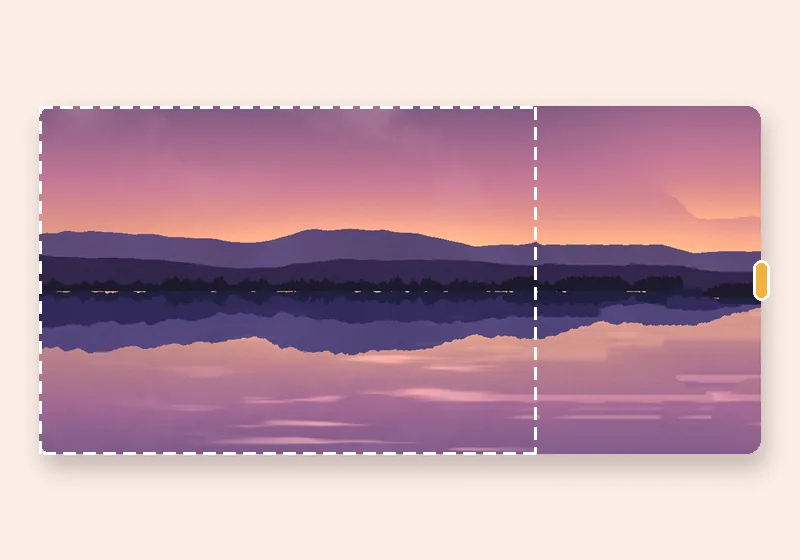
Ceilings and plain walls above a subject, studio backdrops, water and sand below a horizon (pull the bottom handle instead).
Questions

How do I add more sky to a photo?

Open it here — the top edge is already pulled up 35%. Adjust with the top handle, then download. Smart fill and seam match are on by default.

There's a faint line where the new sky starts. What can I do?

Make sure Seam match is at 100% under More options, and try a Soft join of 2–4%. If the sky is a strong gradient, Fade from the photo's colours can also look natural.

How does Smart fill know what to put in the new space?

It copies small patches of your own photo. For every bit of new edge it searches the photo for the patch that fits best with what is already there, then blends those patches together, working from a rough version of the picture down to full detail. Skies, walls, grass, sand, water and studio backdrops come out convincingly; faces, text and unique objects are not invented.

Is my photo uploaded anywhere?

No. The photo is opened, extended and saved by this browser tab. The only optional downloads are the AI models, which are plain files coming to you — nothing about your photo goes out.