Questions
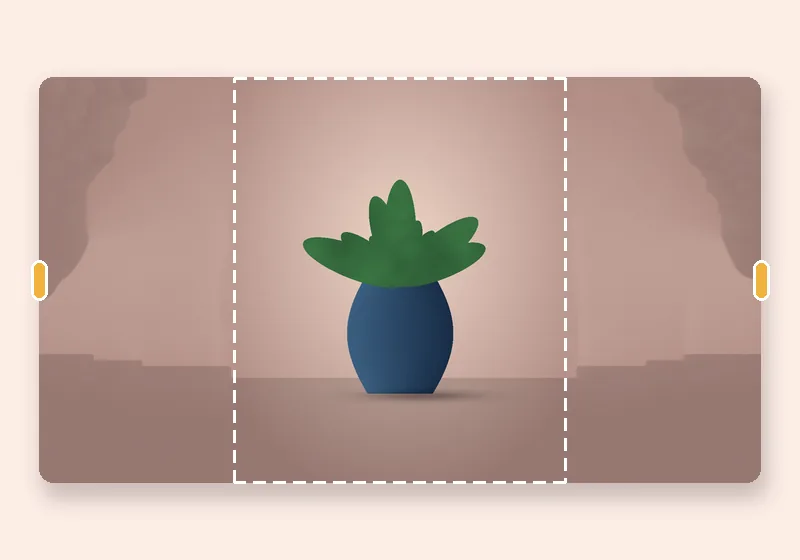
How do I extend only the left side of a picture?
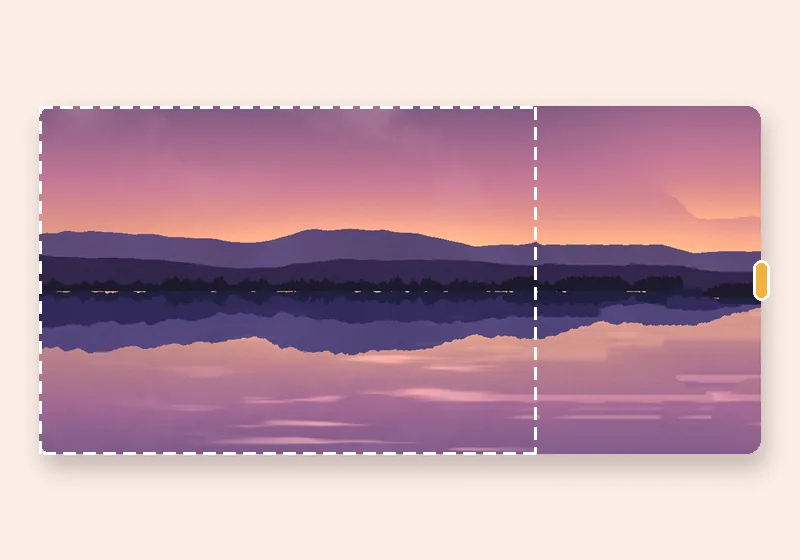
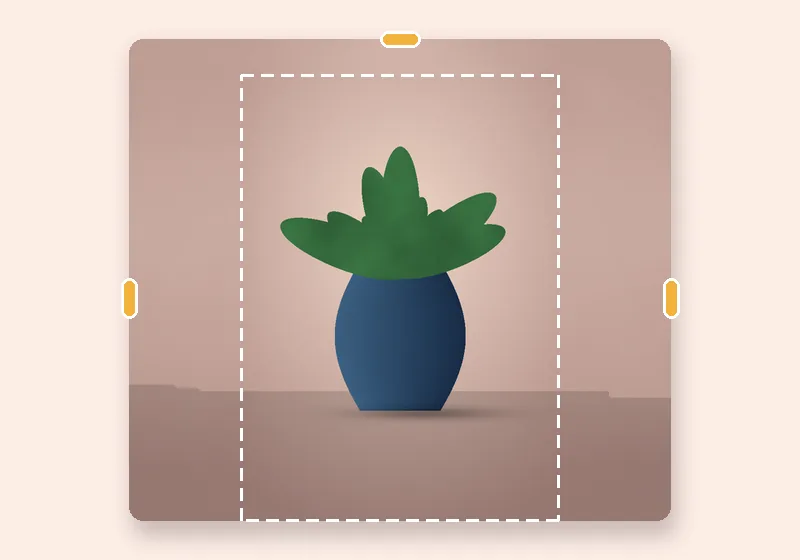
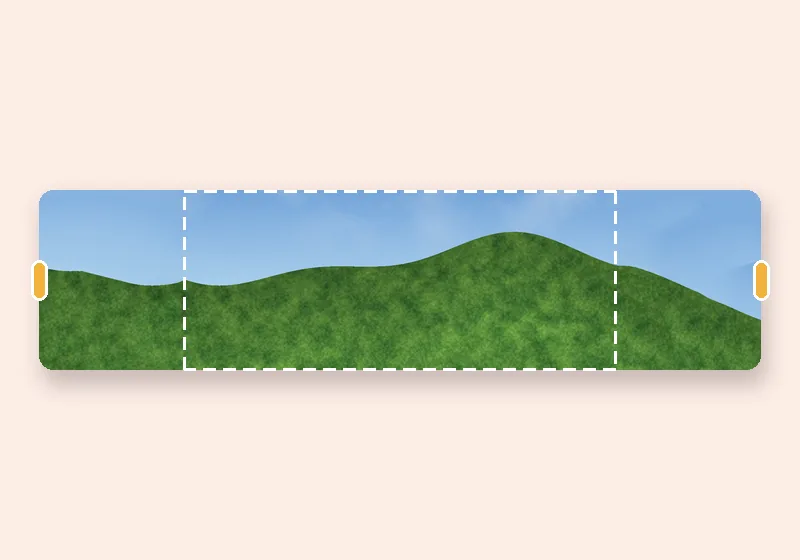
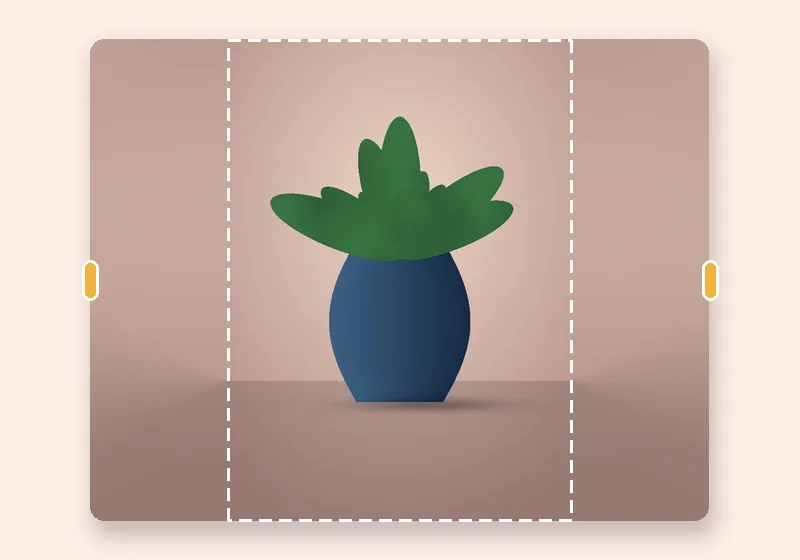
Open the photo, make sure linked edges is set to Each edge, and drag the left handle outward — or press +10% next to Left until it looks right.
Can I type an exact amount?
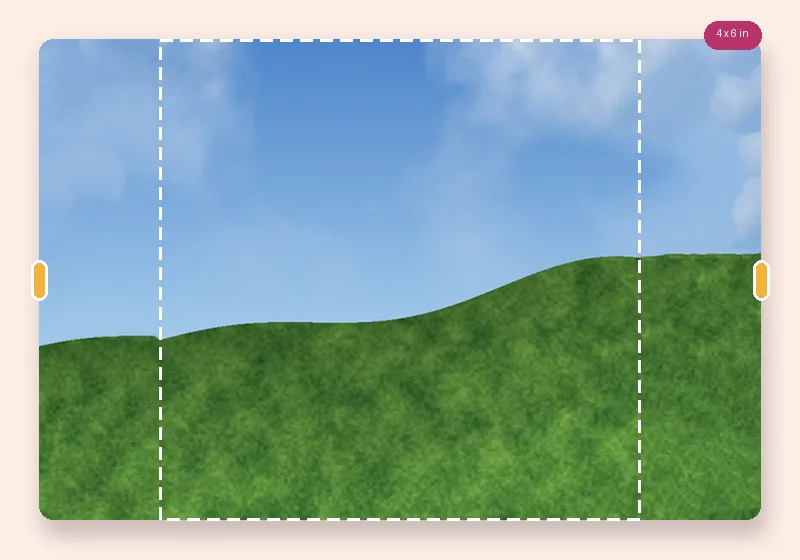
Yes, in pixels, percent of the photo, or centimetres and inches at a DPI you choose (300 by default). When you use centimetres or inches, the saved JPG or PNG records that DPI.
What happens to the corners?
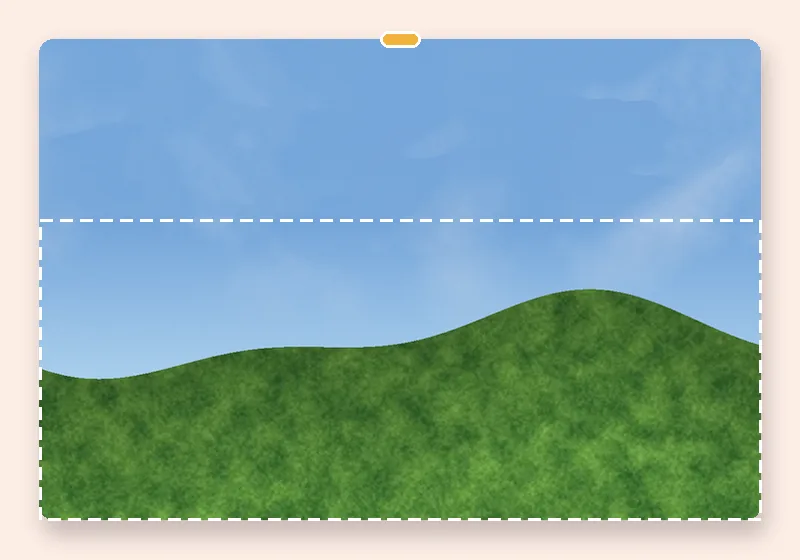
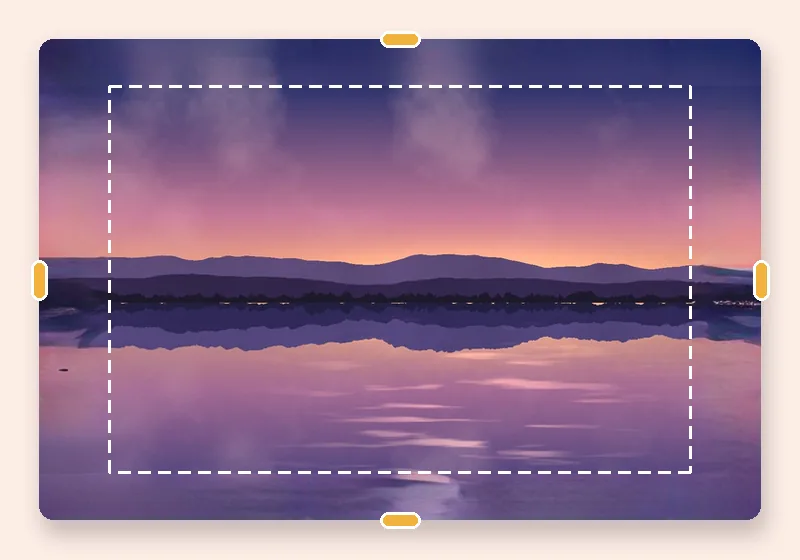
Corner areas belong to the top and bottom strips, so when you extend two neighbouring sides the corner is filled with the top or bottom strip's method.
How does Smart fill know what to put in the new space?
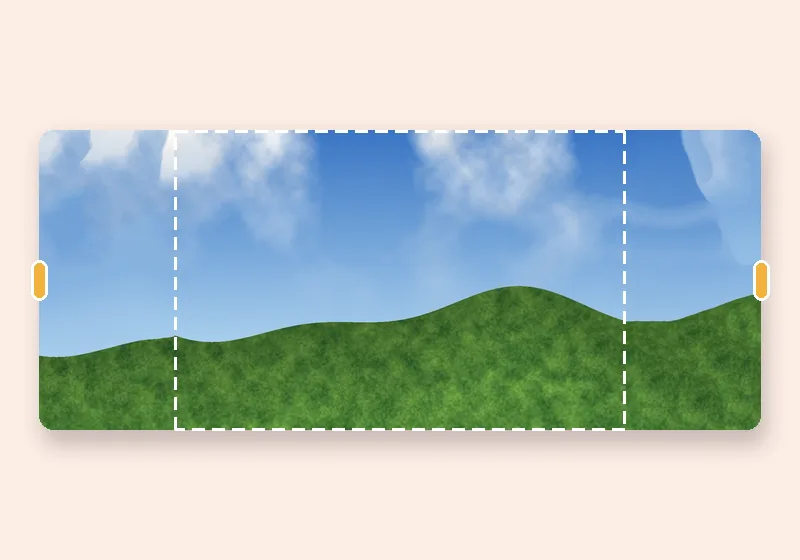
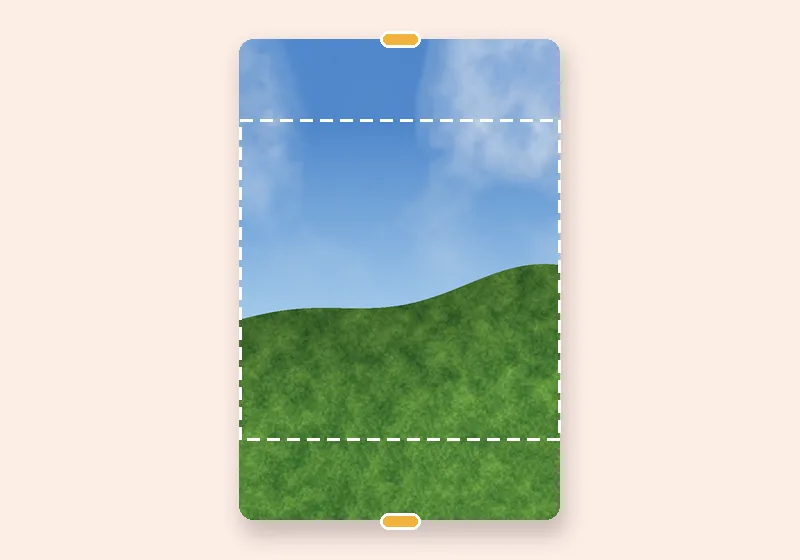
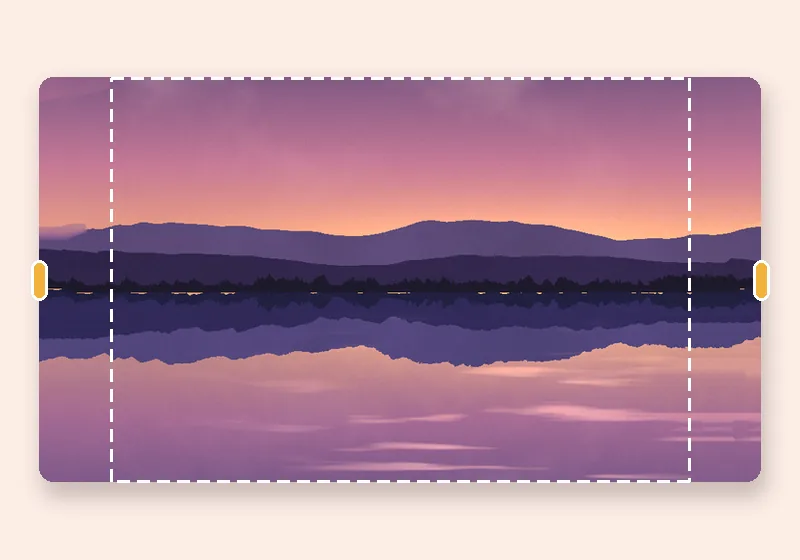
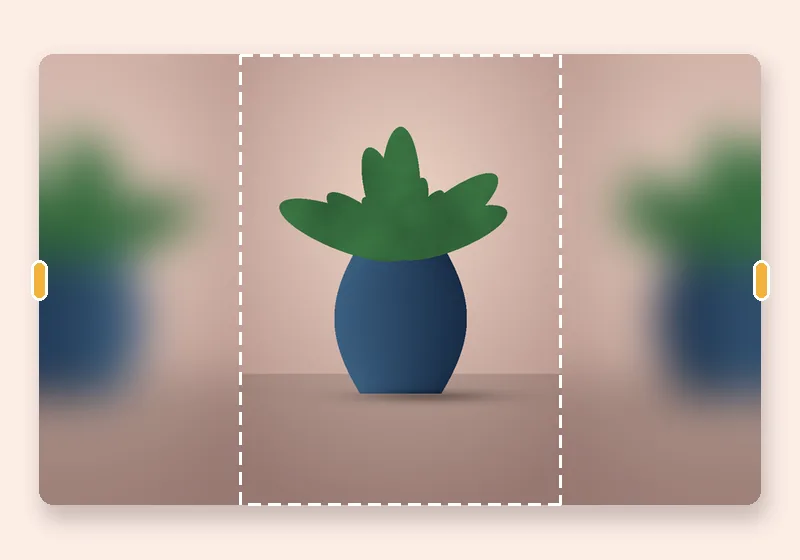
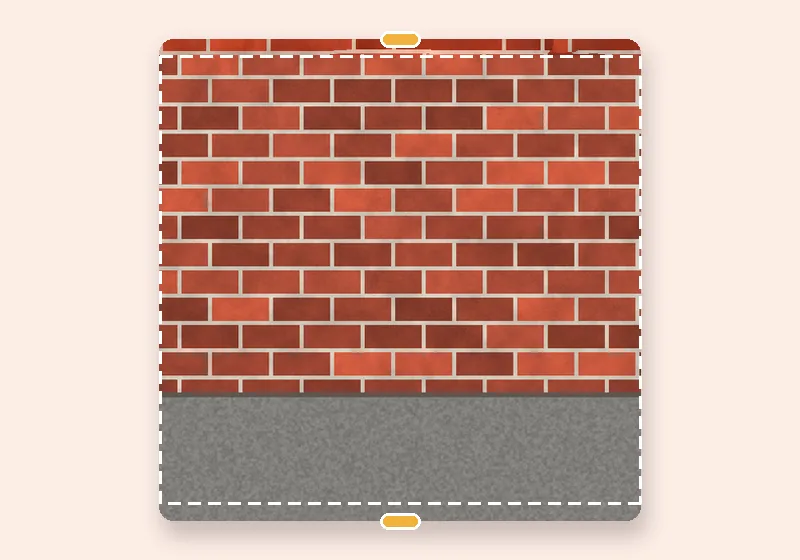
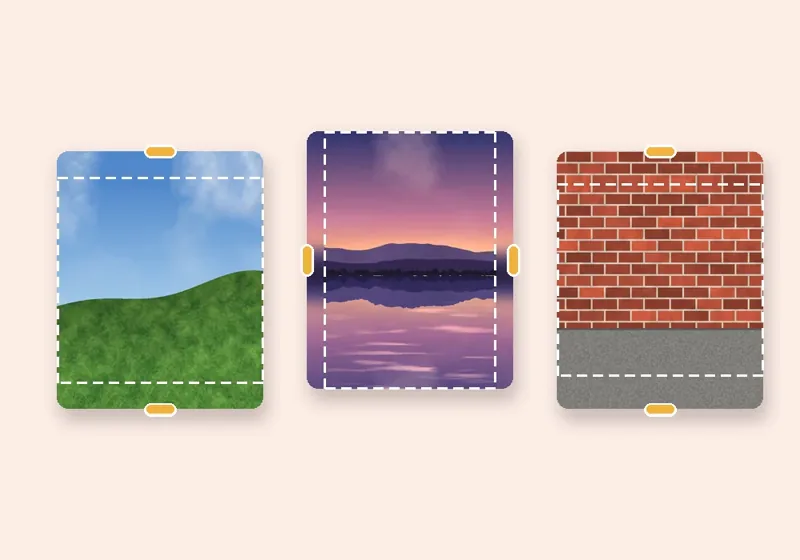
It copies small patches of your own photo. For every bit of new edge it searches the photo for the patch that fits best with what is already there, then blends those patches together, working from a rough version of the picture down to full detail. Skies, walls, grass, sand, water and studio backdrops come out convincingly; faces, text and unique objects are not invented.